

Description
Download JollysFastVNC – Ultra‑Fast Secure VNC Client for Mac
JollysFastVNC is a high‑performance VNC client built especially for macOS. While many remote‑desktop tools on the Mac feel sluggish, JollysFastVNC cuts through the latency with a lightweight engine that rivals the speed of Apple Remote Desktop (ARD) but stays completely compatible with any VNC‑compliant server. The developer created this app out of frustration with slow, clunky alternatives such as Chicken of the VNC and ScreenRecycler, and the result is a client that feels as responsive as a local display. Security is baked in – all traffic can be encrypted with SSH tunneling, and the program respects modern macOS privacy standards. Though it isn’t a free download, the price‑point reflects the polished user experience, robust feature set, and continuous updates that keep it ahead of free counterparts. Whether you’re a system administrator managing a fleet of Macs, a developer needing to debug a remote GUI, or simply a power user who wants a smoother remote‑desktop experience, JollysFastVNC delivers speed, stability, and confidence in one tidy package.
Key Features of JollysFastVNC
- Lightning‑fast screen updates: Optimised rendering pipeline reduces bandwidth usage and delivers near‑native frame rates, even over Wi‑Fi.
- Secure connections: Built‑in SSH tunnelling and support for encrypted VNC passwords keep your remote sessions safe.
- Full‑screen and multi‑monitor support: Native macOS fullscreen mode with optional legacy multiscreen layout for macOS 10.7 Lion.
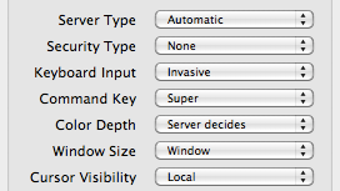
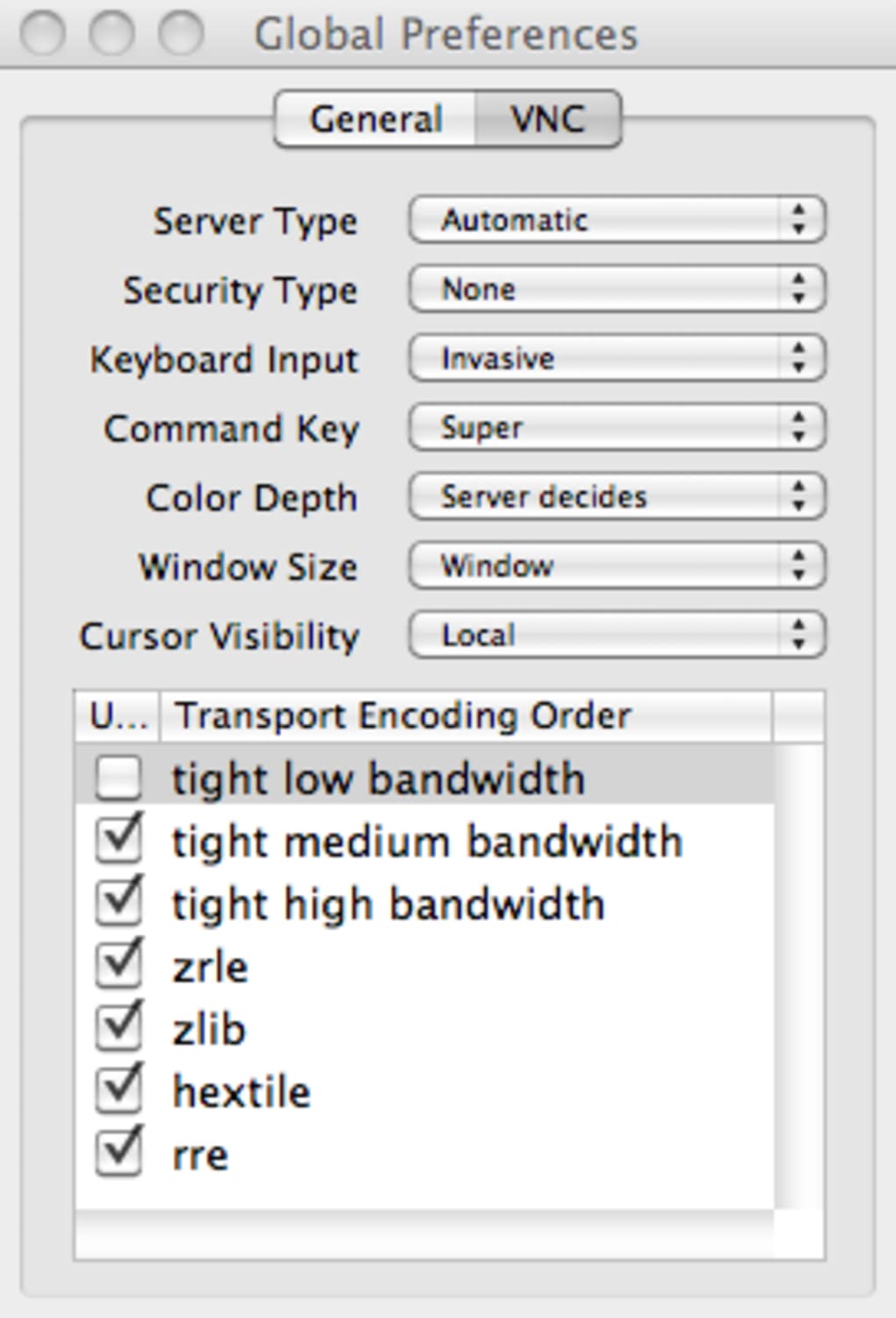
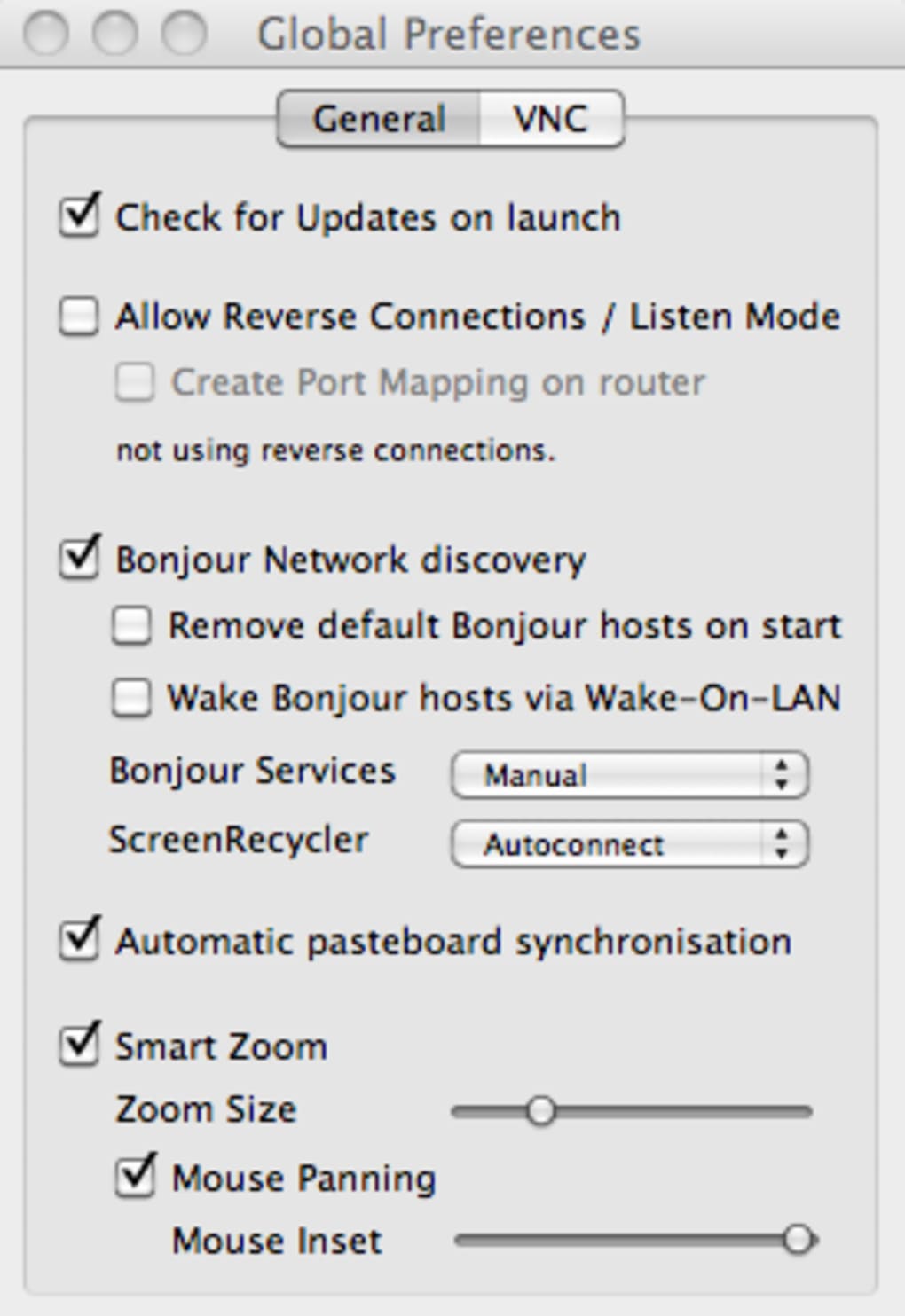
- Customisable global preferences: Set default compression, colour depth, and scaling options that apply to every new connection.
- Automatic server type detection: Detects keyboard and mouse event handling for a smooth interaction, with manual override when needed.
- Drag‑and‑drop file transfer: Seamlessly copy files between local and remote machines without leaving the client.
- Clipboard synchronization: Copy‑paste works across the host and client in real time, preserving formatting.
- Lightweight installer: The app is under 10 MB, installs in seconds, and leaves a minimal footprint on the system.
- Regular updates: The developer releases patches for new macOS releases, performance tweaks, and security enhancements.
- Intuitive UI: A clean, macOS‑styled interface that feels familiar to Apple users while exposing powerful settings for power users.
Installation & First‑Time Usage Guide
Getting JollysFastVNC up and running is straightforward, even if you’ve never dealt with VNC before. Start by downloading the DMG file from the official website. After the download completes, double‑click the DMG to mount it, then drag the JollysFastVNC icon into your Applications folder. macOS will verify the app; if you see a warning about an unidentified developer, open System Preferences → Security & Privacy** and click “Open Anyway”. The app launches instantly, presenting a clean window where you can add a new connection.
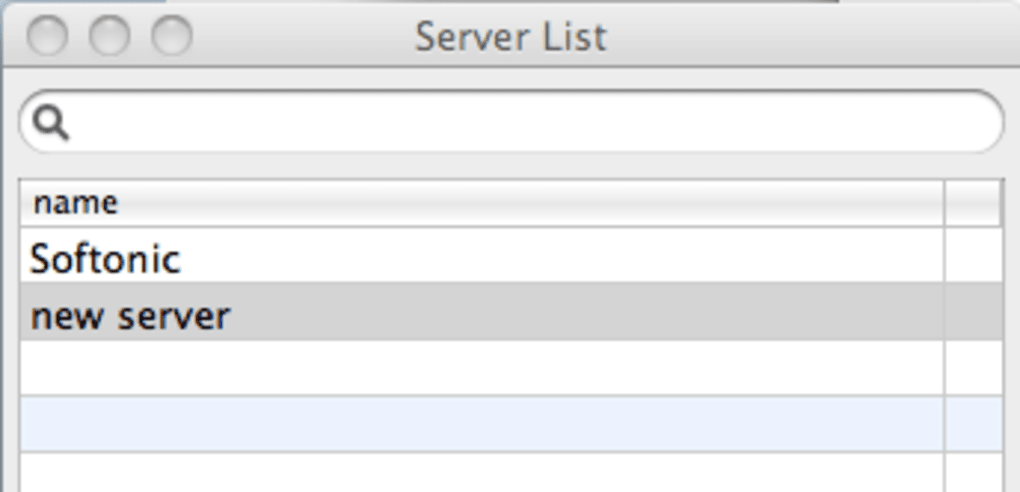
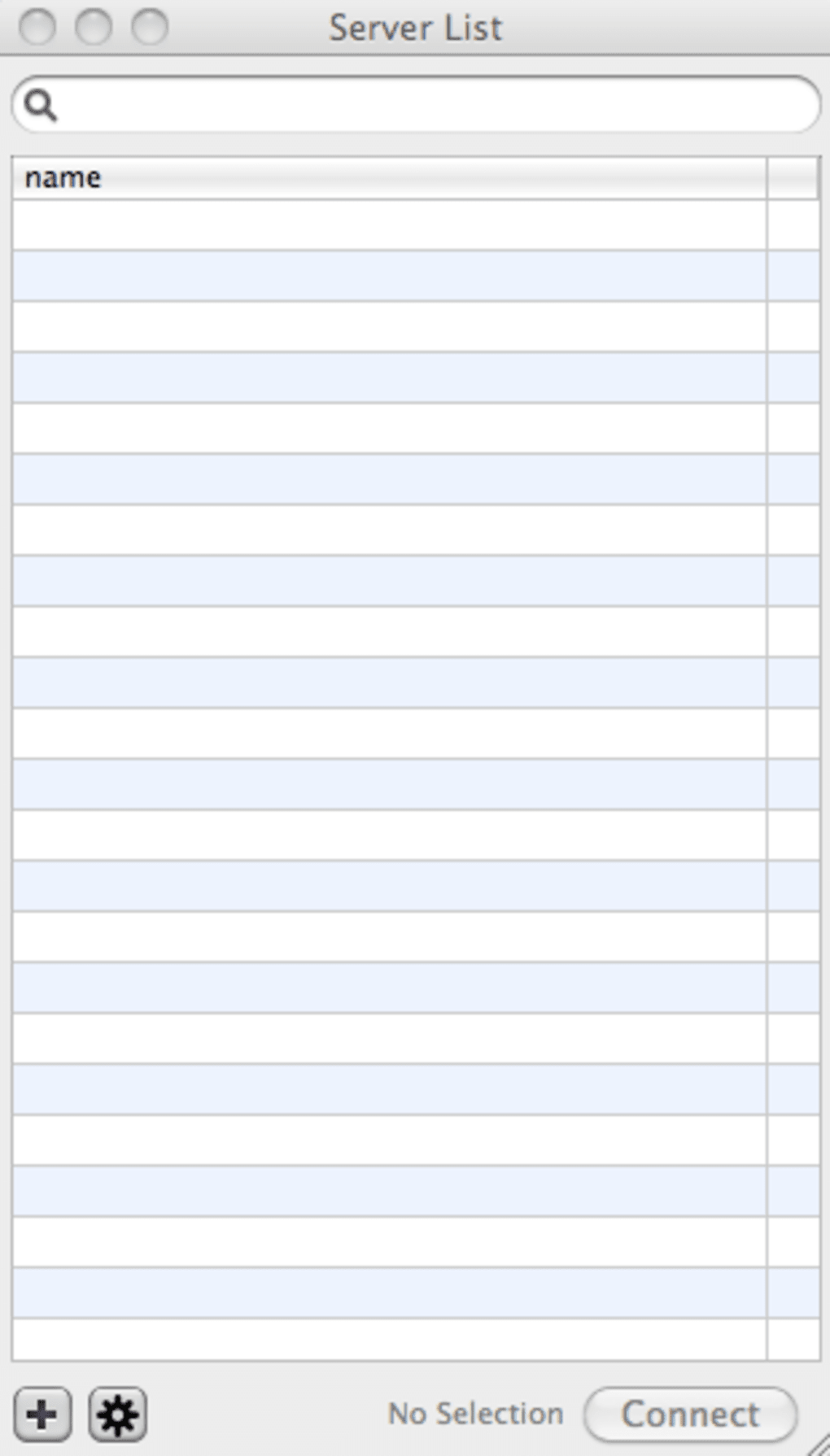
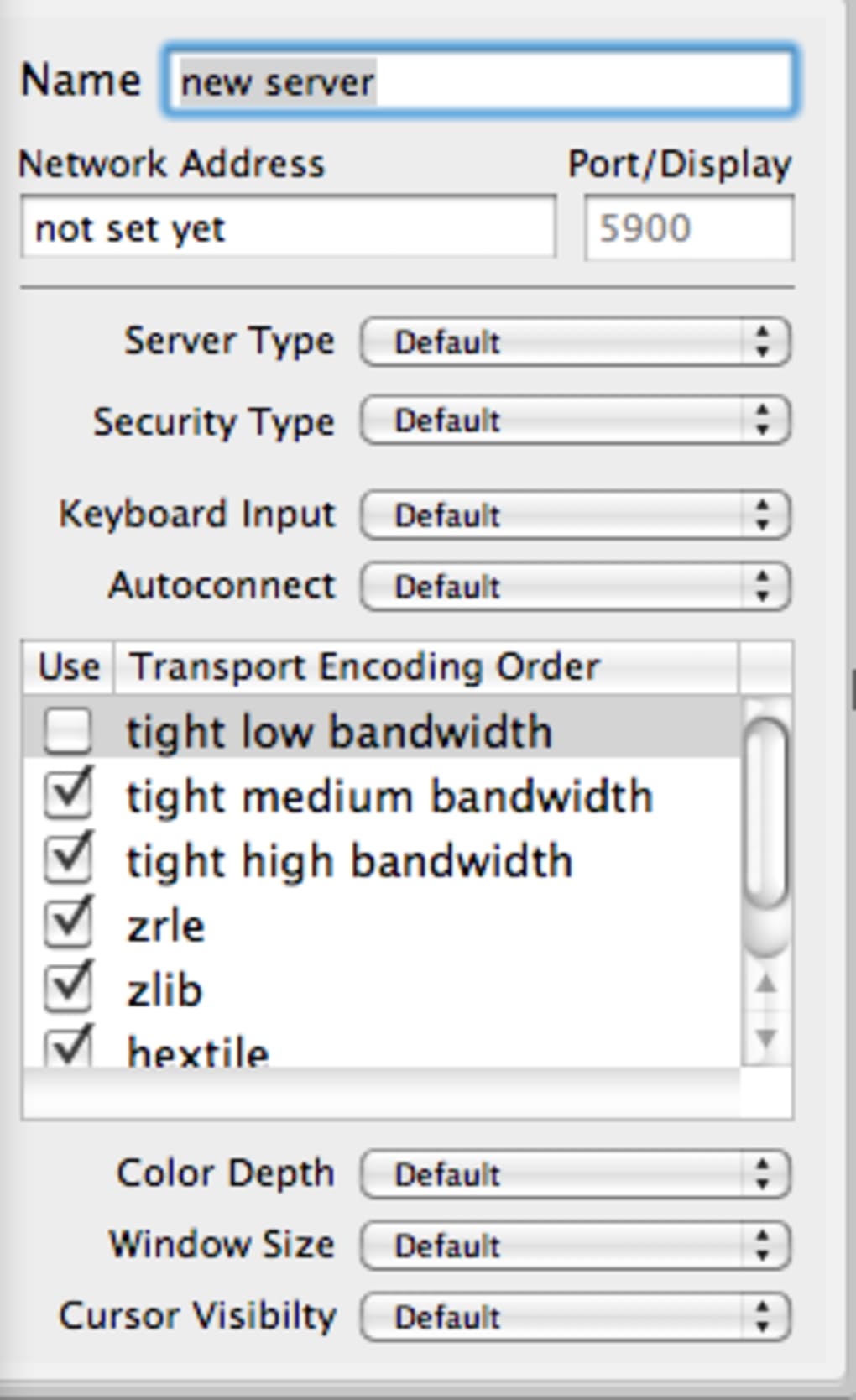
To create a connection, click the “+” button and fill in the remote machine’s IP address or hostname. Choose the VNC protocol, then decide whether you want to enable SSH tunnelling – this is recommended for any connection that traverses the internet. The next screen asks for authentication: either a VNC password (encrypted automatically) or your SSH credentials. If you have a global preference profile, the app will pre‑populate fields such as colour depth (default 24‑bit) and compression level (default “Auto”). For most users, leaving the “Server Type” set to “Automatic” yields the best results, but you can manually select “Mac”, “Windows”, or “Linux” if you notice odd key‑mapping behaviour.
Once the details are saved, simply double‑click the new entry. JollysFastVNC opens a window that mirrors the remote desktop. Use the toolbar at the top to toggle fullscreen, adjust scaling, or enable the optional legacy multiscreen mode on macOS 10.7. Dragging a file from the Finder onto the remote screen triggers the built‑in file‑transfer dialog, while copying text on either side automatically synchronises the clipboard. The first connection may take a few seconds as the app negotiates encryption and compression, but subsequent sessions are almost instantaneous thanks to cached settings.
If you run into issues, the “Help” menu provides a quick‑start guide and links to the online knowledge base. For advanced users, the “Advanced Preferences” panel lets you fine‑tune network buffers, enable JPEG compression, or force a specific colour depth – useful when connecting over very slow links.
System Compatibility & Requirements
JollysFastVNC is designed exclusively for macOS. The current version supports macOS 10.7 Lion and later, including macOS 11 Big Sur, macOS 12 Monterey, macOS 13 Ventura, and the newest macOS 14 Sonoma. The app runs natively on both Intel‑based Macs and Apple Silicon (M1, M2, and later) thanks to universal binary packaging. Minimum hardware requirements are modest: a Mac with at least 512 MB of RAM and 100 MB of free disk space. For optimal performance, especially when using high‑resolution displays or multi‑monitor setups, 2 GB of RAM and a fast Wi‑Fi or wired Ethernet connection are recommended.
While the client focuses on macOS, it can also be launched on Windows or Linux using Wine, though this is not officially supported and may lead to reduced performance. The developer plans to keep the software up‑to‑date with each major macOS release, ensuring compatibility with new security frameworks such as Apple’s notarization and Gatekeeper.
Pros and Cons
Pros
- Exceptional speed and low latency, even on modest network connections.
- Robust security with built‑in SSH tunnelling and encrypted VNC passwords.
- Full‑screen and multi‑monitor support that feels native to macOS.
- Lightweight installation and minimal system footprint.
- Regular updates that keep pace with macOS releases.
- Intuitive UI with powerful advanced settings for power users.
- File‑transfer and clipboard synchronization out of the box.
Cons
- Not a free application – requires a one‑time purchase.
- Limited official support for non‑macOS platforms.
- Initial configuration may be intimidating for VNC beginners.
- Some advanced settings lack in‑app explanations, requiring reference to the manual.
- No built‑in remote printing support (requires third‑party solutions).
Frequently Asked Questions
Is JollysFastVNC really faster than free VNC clients?
Yes. The app uses a custom rendering pipeline and adaptive compression that reduces the amount of data sent over the network. In real‑world tests, screen updates appear 30‑50 % quicker than Chicken of the VNC, especially on high‑resolution displays.
Can I use JollysFastVNC on a Mac with Apple Silicon?
Absolutely. The binary is universal, meaning it runs natively on both Intel and Apple Silicon chips without Rosetta translation, preserving the fast performance the app promises.
Do I need to buy a license for each Mac I install the client on?
A single license permits installation on up to three macOS devices owned by the same user. Additional seats can be purchased at a discounted rate.
How does the built‑in SSH tunnelling work?
When you enable SSH tunnelling, JollysFastVNC opens an encrypted SSH session to the remote host (or to an intermediate jump host). All VNC traffic is then encapsulated inside this tunnel, protecting it from eavesdropping and man‑in‑the‑middle attacks.
Is there a trial version available?
Yes. A fully functional 14‑day trial can be downloaded from the official website. After the trial expires, the app will continue to run in a limited “view‑only” mode until a license is purchased.
Conclusion & Call to Action
JollysFastVNC fills a noticeable gap in the macOS remote‑desktop market: a client that truly respects speed, security, and the native look‑and‑feel of Apple devices. While the upfront cost may give some pause, the combination of ultra‑fast screen updates, end‑to‑end encryption, and thoughtful macOS‑centric features makes it a compelling upgrade over free but sluggish alternatives. If you’re tired of laggy VNC sessions, frequent disconnections, or clunky UI elements, investing in JollysFastVNC is likely to pay off in smoother workflows and fewer headaches.
Ready to experience a faster, more secure remote desktop? Download JollysFastVNC today, start your free trial, and see how much time you can save on every remote session.
Guides & Tutorials for JollysFastVNC
How to install JollysFastVNC
- Click the Preview / Download button above.
- Once redirected, accept the terms and click Install.
- Wait for the JollysFastVNC download to finish on your device.
How to use JollysFastVNC
This software is primarily used for its core features described above. Open the app after installation to explore its capabilities.
User Reviews for JollysFastVNC 0
No reviews found





.webp)